
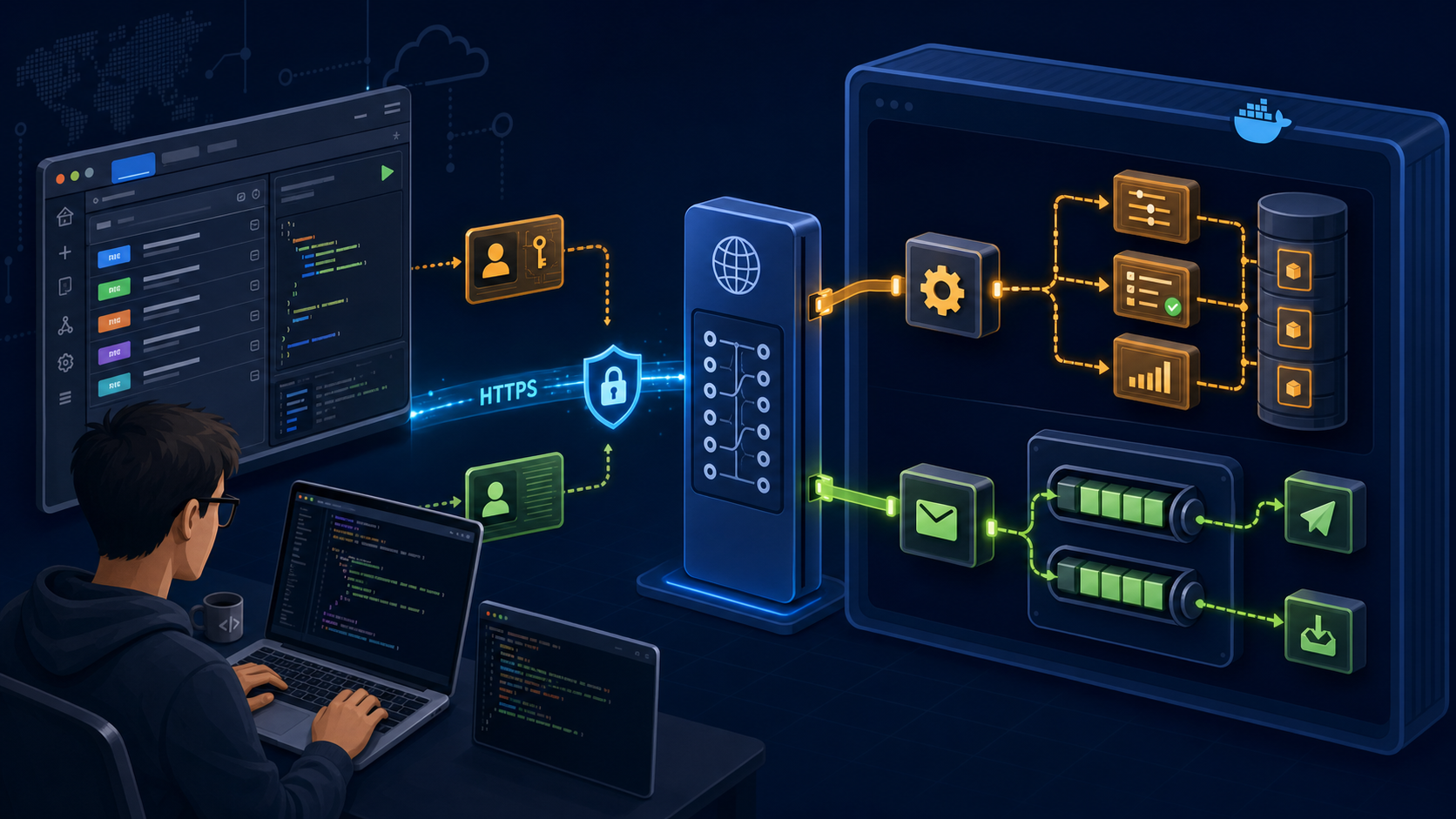
IBM MQ applications traditionally connect with an MQ client library and use the Message Queue Interface. Administrators commonly use MQSC, PCF, the IBM MQ Console, or IBM MQ Explorer. Those interfaces remain important, but they are not the only way to work with a queue manager.
IBM MQ also provides HTTP APIs through the mqweb server. They are useful when an automation tool, operations portal, diagnostic script, or lightweight application can speak HTTPS but should not carry an MQ client installation.
This article builds a lab that uses two related but distinct APIs:
| API | Responsibility |
|---|---|
| Administrative REST API | Inspect queue managers and execute administrative operations |
| Messaging REST API | Put, browse, and destructively receive messages |
The lab creates separate administrative and application sessions, stores their LTPA cookies, creates and alters a queue, exchanges messages, inspects queue depth, interprets errors, and logs out. Every request originates in a separate tools container. The REST client has no shell, file-system, or MQI access to the queue manager.
Lab considerations: the IBM MQ Advanced for Developers image and its generated web certificate are suitable for a disposable workstation exercise. The commands use
curl --insecurebecause the generated certificate is not trusted by the tools container. Production automation must validate the mqweb server certificate, protect credentials and cookies, assign narrowly scoped identities, and restrict network access to port 9443.
1. Two APIs behind one HTTPS endpoint
The IBM MQ Console and REST APIs run in the mqweb WebSphere Liberty server. The default HTTPS listener is port 9443 and the version 3 API prefix is:
https://host:9443/ibmmq/rest/v3The two APIs do different jobs beneath that prefix.
Administrative resources begin with:
/adminMessaging resources begin with:
/messagingFor example, these are different operations:
GET  /ibmmq/rest/v3/admin/qmgr/RESTQM
POST /ibmmq/rest/v3/messaging/qmgr/RESTQM/queue/DEV.REST.REQUESTS/message
While the first asks mqweb for queue-manager status, the second puts an MQ message. Sharing HTTP and authentication infrastructure does not make administration and messaging equivalent.
The distinction also matters for authorization. An identity can be allowed to log in to mqweb but still lack the MQ authorities needed to put to or get from a queue. Conversely, an MQ authority does not by itself grant an mqweb role.
2. Authentication, cookies, and CSRF protection
IBM MQ supports HTTP basic authentication, client-certificate authentication, and token-based authentication for the REST API. This lab uses token authentication so that the password is sent once rather than repeated with every request.
The client posts credentials to:
POST /ibmmq/rest/v3/loginIf authentication succeeds, mqweb returns an LTPA token in a cookie and the client sends that cookie with later requests. The default token lifetime is finite and can be configured, so an automation client must be able to log in again after expiration.
Requests that change state also carry the header:
ibm-mq-rest-csrf-token: labThe value is not a secret and can be any value, including an empty value. Its presence is the protection required by mqweb for operations such as POST, PATCH, and DELETE and it does not replace authentication.
The resulting flow is:
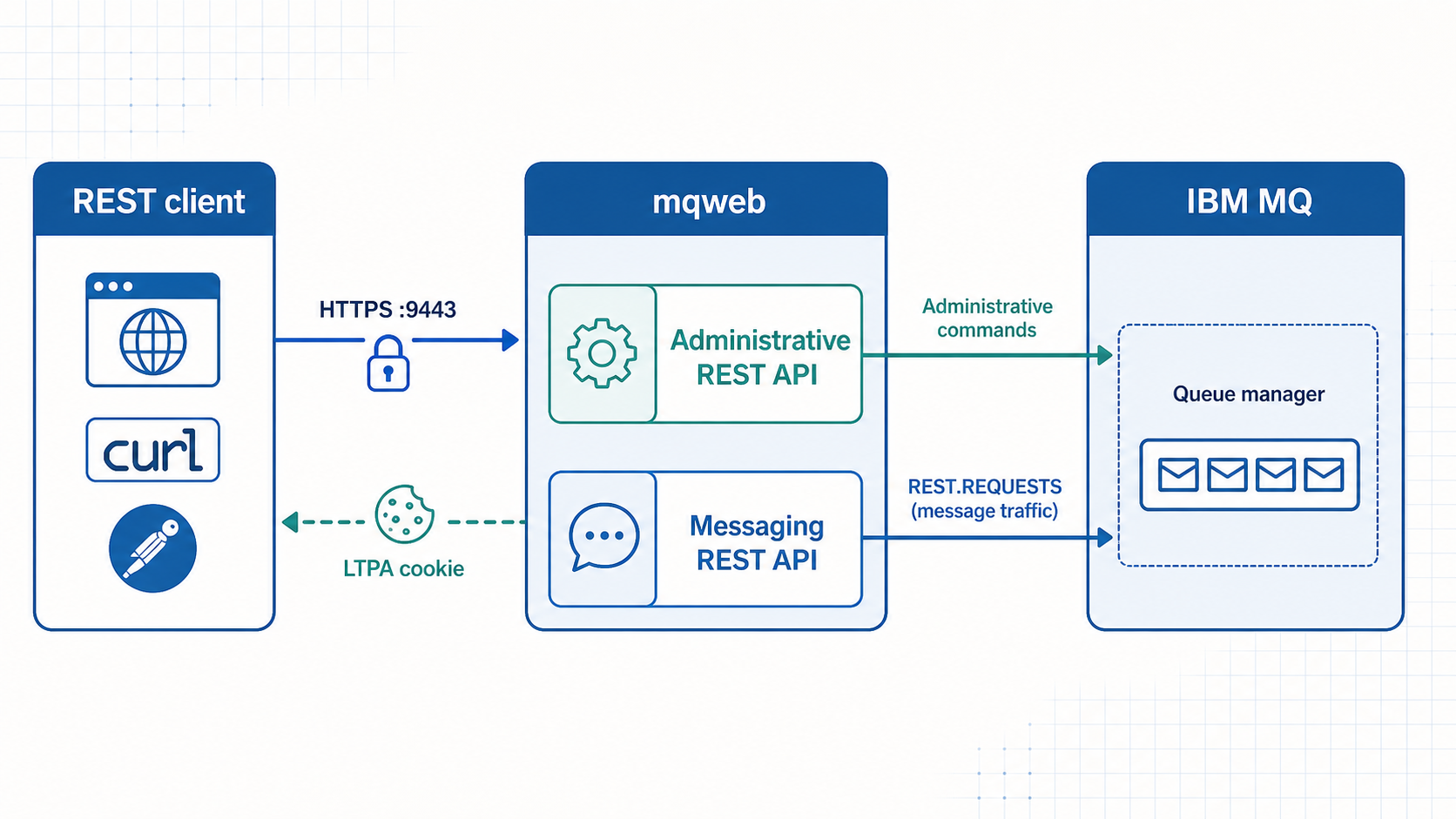
Always use HTTPS so that credentials in a login request are protected by TLS while in transit.
3. Lab requirements
Use a disposable development machine with:
- Docker Engine or Docker Desktop
- Docker Compose v2
- At least 4 GB of free memory
- Internet access to
icr.ioand Docker Hub - An AMD64 Linux host, or Docker Desktop on Apple silicon with AMD64 emulation
The lab pins these images:
icr.io/ibm-messaging/mq:10.0.0.0-r2
alpine:3.22
The MQ image is licensed only for development use. Accepting its license in the Compose file does not grant a production entitlement.
4. Create the project
Create an empty lab directory:
mkdir -p "$HOME/mq-rest-api-lab/client" \
         "$HOME/mq-rest-api-lab/secrets"
cd "$HOME/mq-rest-api-lab"
Create the password files used as Docker secrets:
printf '%s' 'AdminPassw0rd!' > secrets/mqAdminPassword
printf '%s' 'AppPassw0rd!' > secrets/mqAppPassword
chmod 600 secrets/mqAdminPassword secrets/mqAppPassword
The application password is not central to this lab, but the developer image expects credentials for both predefined development identities.
5. Build the REST tools container
The tools container provides only curl, jq, and a shell. Create the client/Dockerfile:
cat > client/Dockerfile <<'DOCKERFILE'
FROM alpine:3.22

RUN apk add --no-cache curl jq

WORKDIR /work
ENTRYPOINT ["/bin/sh", "-c"]
CMD ["sleep infinity"]
DOCKERFILE
Using a separate container proves that every operation crosses the Compose network over HTTPS. Nothing is executed with docker compose exec mq after the readiness check.
6. Define the Docker environment
Create compose.yaml:
cat > compose.yaml <<'YAML'
services:
  mq:
    image: icr.io/ibm-messaging/mq:10.0.0.0-r2
    platform: linux/amd64
    environment:
      LICENSE: accept
      MQ_QMGR_NAME: RESTQM
      MQ_DEV: "true"
    secrets:
      - mqAdminPassword
      - mqAppPassword
    ports:
      - "9443:9443"
    volumes:
      - qmdata:/mnt/mqm
    healthcheck:
      test: ["CMD-SHELL", "dspmq -m RESTQM | grep -q 'STATUS(Running)'"]
      interval: 5s
      timeout: 5s
      retries: 40

  rest-client:
    build:
      context: ./client
    profiles: ["tools"]
    command: ["sleep infinity"]
    volumes:
      - ./client:/work
    depends_on:
      mq:
        condition: service_healthy

volumes:
  qmdata:

secrets:
  mqAdminPassword:
    file: ./secrets/mqAdminPassword
  mqAppPassword:
    file: ./secrets/mqAppPassword
YAML
The tools profile keeps the client container out of a queue-manager-only startup. Later sections enable the profile because all REST requests run from that container.
7. Start IBM MQ and wait for mqweb
Start the queue manager:
docker compose up -d mq
docker compose ps
Wait until the queue manager health check succeeds:
until [ "$(docker inspect \
  --format='{{.State.Health.Status}}' \
  mq-rest-api-lab-mq-1 2>/dev/null)" = "healthy" ]; do
  docker compose ps
  sleep 5
done
Start the tools container:
docker compose --profile tools up -d rest-clientThe queue manager can become healthy shortly before mqweb is ready. Wait for an HTTPS response:
until docker compose exec rest-client sh -lc '
  curl --silent --insecure --output /dev/null \
       https://mq:9443/ibmmq/rest/v3/login
'; do
  sleep 15
done
Open the interactive REST API Explorer
IBM MQ can publish a Swagger interface that lists the available REST resources, HTTP methods, parameters, request bodies, response codes, and schemas. It also provides Try it out controls for submitting operations from the browser.
The page is:
https://localhost:9443/api/explorer/This is the public API Discovery page exposed by Liberty. It is the most useful page for discovering operations while working through the article and covers more than the small set of requests selected for this lab. The protected /ibm/api/explorer/ endpoint is also registered, but with this container's mqweb security configuration it can fail during authentication; use the public discovery page for the documentation.
API Discovery is a stabilized Liberty feature: it remains available, but IBM is no longer developing it as a strategic feature. It is not enabled in the container's default mqweb configuration.
The running container reads its Liberty configuration from the MQ data path under /var/mqm, not from the image template under /opt/mqm. Export the active mqwebuser.xml file to the project:
docker compose exec -T mq \
  cat /var/mqm/web/installations/Installation1/servers/mqweb/mqwebuser.xml \
  > mqwebuser.xml

test -s mqwebuser.xml
head -n 5 mqwebuser.xml
Using docker compose exec -T avoids pseudo-terminal characters in the output and is more reliable here than copying the file out with docker compose cp. The test command also stops the sequence if the export did not produce a non-empty file.
The container-generated file does not contain a <featureManager> element. Add a complete feature manager immediately before the closing </server> tag. The substitution operates on the tag itself, so it also works when <server> and </server> are on the same line:
awk '
  !inserted && /<\/server>/ {
    sub(/<\/server>/,
        "  <featureManager>\n" \
        "    <feature>apiDiscovery-1.0</feature>\n" \
        "  </featureManager>\n" \
        "</server>")
    inserted=1
  }
  { print }
  END {
    if (!inserted) exit 1
  }
' mqwebuser.xml > mqwebuser.xml.updated &&
mv mqwebuser.xml.updated mqwebuser.xml
The move occurs only if awk finds </server> and completes successfully. Confirm that the new feature and its surrounding element are present, and that the feature appears only once:
grep -n -C 2 'apiDiscovery-1.0' mqwebuser.xml
test "$(grep -c 'apiDiscovery-1.0' mqwebuser.xml)" -eq 1
Write the updated configuration back through a shell running inside the container. This is important because the container maps the MQ data directory internally
docker compose exec -T mq sh -c \
  'cat > /var/mqm/web/installations/Installation1/servers/mqweb/mqwebuser.xml' \
  < mqwebuser.xml
Verify the installed file before restarting mqweb:
docker compose exec mq sh -lc '
  grep -n -C 2 "apiDiscovery-1.0" \
    /var/mqm/web/installations/Installation1/servers/mqweb/mqwebuser.xml
'
Restart the MQ container so that its entry point starts and continues to supervise mqweb with the updated configuration.
docker compose restart mq

mq_ready=0

for attempt in $(seq 1 24); do
  if docker compose exec mq dspmq |
       grep -q 'STATUS(Running)' &&
     docker compose exec mq dspmqweb |
       grep -q "Server 'mqweb' is running"; then
    mq_ready=1
    break
  fi
  sleep 15
done

if [ "$mq_ready" -ne 1 ]; then
  docker compose ps -a
  docker compose logs --tail 100 mq
  false
fi
Confirm that Liberty installed the feature:
docker compose logs mq |
  grep 'CWWKF0012I' |
  tail -n 1 |
  grep 'apiDiscovery-1.0'
Do not continue unless the final command prints a feature list containing apiDiscovery-1.0.
Do not use the explorer page itself as the readiness check. When API Discovery is unavailable, an unknown browser path can fall back to the MQ Console and still return HTTP 200. Instead, allow mqweb up to two minutes to make the public /api/docs/ endpoint available and require a Swagger document containing both swagger and paths:
api_ready=0

for attempt in $(seq 1 24); do
  if docker compose exec rest-client sh -lc '
    curl --silent --show-error --fail --insecure \
         https://mq:9443/api/docs/ |
    jq --exit-status ".swagger and .paths" >/dev/null
  '; then
    api_ready=1
    break
  fi
  sleep 15
done

if [ "$api_ready" -ne 1 ]; then
  docker compose exec mq dspmqweb
  docker compose logs --tail 100 mq
  false
fi
Now open https://localhost:9443/api/explorer/ in a browser. Expand the administrative and messaging sections to see the operations used later in the lab.
The same Swagger 2 description is available as JSON:
https://localhost:9443/api/docs/That document is useful for importing the API into compatible tools or inspecting its operation and schema definitions programmatically:
docker compose exec -T rest-client sh -lc '
  curl --silent --insecure https://mq:9443/api/docs/ |
  jq ".info, (.paths | keys[])"
'
The public API Explorer exposes documentation, not unsecured access to MQ. Requests to the administrative and messaging REST APIs still need authentication, the applicable mqweb role, MQ object authority, and CSRF protection where required. The following sections use authenticated curl requests so that these requirements remain explicit.
Confirm the MQ version:
docker compose exec mq dspmqverThe output should identify IBM MQ 10.0.0.0.
8. Log in and store the LTPA token
Log in as the developer administrator:
docker compose exec -T rest-client sh -lc '
  curl --silent --show-error --insecure \
       --cookie-jar cookies.txt \
       --header "Content-Type: application/json" \
       --data @- \
       https://mq:9443/ibmmq/rest/v3/login |
  jq .
' <<'JSON'
{
  "username": "admin",
  "password": "AdminPassw0rd!"
}
JSON
--cookie-jar cookies.txt stores the cookie returned by mqweb. Inspect its structure:
docker compose exec -T rest-client sh -lc '
  awk "/^#/ { next } NF { print \$1, \$3, \$6 }" cookies.txt
'
Query the current login:
docker compose exec -T rest-client sh -lc '
  curl --silent --show-error --insecure \
       --cookie cookies.txt \
       https://mq:9443/ibmmq/rest/v3/login |
  jq .
'
The response identifies the authenticated user and its mqweb roles.
Treat
cookies.txtas a credential. Anyone who obtains a valid LTPA token might be able to act as that session until it expires or is invalidated.
The administrator belongs to the mqweb administrative role, but the messaging REST API requires the MQWebUser role. Create a separate application session:
docker compose exec -T rest-client sh -lc '
  curl --silent --show-error --insecure \
       --cookie-jar app-cookies.txt \
       --header "Content-Type: application/json" \
       --data @- \
       https://mq:9443/ibmmq/rest/v3/login |
  jq .
' <<'JSON'
{
  "username": "app",
  "password": "AppPassw0rd!"
}
JSON
Keep the identities separate throughout the lab:
| Cookie file | Identity | Purpose |
|---|---|---|
cookies.txt | admin | Administrative REST and JSON MQSC |
app-cookies.txt | app | Messaging REST operations |
9. Inspect the queue manager
List queue managers visible to mqweb:
docker compose exec -T rest-client sh -lc '
  curl --silent --show-error --insecure \
       --cookie cookies.txt \
       https://mq:9443/ibmmq/rest/v3/admin/qmgr |
  jq .
'
Request status for RESTQM:
docker compose exec -T rest-client sh -lc '
  curl --silent --show-error --insecure \
       --cookie cookies.txt \
       "https://mq:9443/ibmmq/rest/v3/admin/qmgr/RESTQM?attributes=*" |
  jq .
'
REST paths are case-sensitive. RESTQM and restqm are not interchangeable.
The queue-manager resource is an administrative resource. IBM MQ API v3 handles many object-level administrative changes differently: it exposes a JSON representation of MQSC through an action endpoint.
10. Create a queue with JSON MQSC
The version 3 MQSC action URL is:
/admin/action/qmgr/{qmgrName}/mqscCreate the DEV.REST.REQUESTS queue. The developer image grants its application identity MQ authority under the DEV.** namespace:
docker compose exec -T rest-client sh -lc '
  curl --silent --show-error --insecure \
       --cookie cookies.txt \
       --header "ibm-mq-rest-csrf-token: lab" \
       --header "Content-Type: application/json" \
       --data @- \
       https://mq:9443/ibmmq/rest/v3/admin/action/qmgr/RESTQM/mqsc |
  jq .
' <<'JSON'
{
  "type": "runCommandJSON",
  "command": "define",
  "qualifier": "qlocal",
  "name": "DEV.REST.REQUESTS",
  "parameters": {
    "replace": "yes",
    "descr": "Queue created through the administrative REST API",
    "maxdepth": 100
  }
}
JSON
A successful response has:
{
  "overallCompletionCode": 0,
  "overallReasonCode": 0
}
The full response also contains an entry in commandResponse. Always examine the codes; printing JSON is useful while learning, but automation should enforce success.
Display selected queue attributes:
docker compose exec -T rest-client sh -lc '
  curl --silent --show-error --insecure \
       --cookie cookies.txt \
       --header "ibm-mq-rest-csrf-token: lab" \
       --header "Content-Type: application/json" \
       --data @- \
       https://mq:9443/ibmmq/rest/v3/admin/action/qmgr/RESTQM/mqsc |
  jq ".commandResponse[].parameters"
' <<'JSON'
{
  "type": "runCommandJSON",
  "command": "display",
  "qualifier": "qlocal",
  "name": "DEV.REST.REQUESTS",
  "responseParameters": [
    "descr",
    "maxdepth",
    "put",
    "get"
  ]
}
JSON
This is not an arbitrary private JSON schema invented by the lab. The command, qualifier, parameters, and response parameters map to MQSC concepts.
11. Alter the queue
Increase the Queue maximum depth:
docker compose exec -T rest-client sh -lc '
  curl --silent --show-error --insecure \
       --cookie cookies.txt \
       --header "ibm-mq-rest-csrf-token: lab" \
       --header "Content-Type: application/json" \
       --data @- \
       https://mq:9443/ibmmq/rest/v3/admin/action/qmgr/RESTQM/mqsc |
  jq .
' <<'JSON'
{
  "type": "runCommandJSON",
  "command": "alter",
  "qualifier": "qlocal",
  "name": "DEV.REST.REQUESTS",
  "parameters": {
    "maxdepth": 200,
    "descr": "Queue managed through IBM MQ REST API v3"
  }
}
JSON
Repeat the display request from the previous section and confirm that maxdepth is now 200.
docker compose exec -T rest-client sh -lc '
  curl --silent --show-error --insecure \
       --cookie cookies.txt \
       --header "ibm-mq-rest-csrf-token: lab" \
       --header "Content-Type: application/json" \
       --data @- \
       https://mq:9443/ibmmq/rest/v3/admin/action/qmgr/RESTQM/mqsc |
  jq ".commandResponse[].parameters"
' <<'JSON'
{
  "type": "runCommandJSON",
  "command": "display",
  "qualifier": "qlocal",
  "name": "DEV.REST.REQUESTS",
  "responseParameters": [
    "descr",
    "maxdepth",
    "put",
    "get"
  ]
}
JSON
For repeatable automation, prefer commands that converge on a desired state. The replace option makes the initial definition convenient in a disposable lab, but replacing an existing production object without comparing its current attributes can erase intentional configuration.
12. Put messages with the messaging REST API
The message resource is:
/messaging/qmgr/{qmgrName}/queue/{queueName}/messagePut a persistent JSON document with a two-minute expiry:
docker compose exec -T rest-client sh -lc '
  curl --silent --show-error --insecure \
       --dump-header put.headers \
       --output /dev/null \
       --write-out "HTTP %{http_code}\n" \
       --cookie app-cookies.txt \
       --header "ibm-mq-rest-csrf-token: lab" \
       --header "Content-Type: application/json;charset=utf-8" \
       --header "ibm-mq-md-persistence: persistent" \
       --header "ibm-mq-md-expiry: 120000" \
       --header "ibm-mq-md-priority: 7" \
       --data @- \
       https://mq:9443/ibmmq/rest/v3/messaging/qmgr/RESTQM/queue/DEV.REST.REQUESTS/message
' <<'JSON'
{
  "orderId": "ORD-1001",
  "status": "created",
  "source": "mq-rest-api-lab"
}
JSON
The request body becomes the MQ message body. Successful POST responses have no response body. The lab stores the response headers and prints the HTTP status.
Inspect the MQ headers returned by mqweb:
docker compose exec rest-client sh -lc '
  grep -i "^ibm-mq-" put.headers
'
The headers include identifiers allocated to the message.
Put a second, simple text message:
docker compose exec rest-client sh -lc '
  curl --silent --show-error --insecure \
       --output /dev/null \
       --write-out "HTTP %{http_code}\n" \
       --cookie app-cookies.txt \
       --header "ibm-mq-rest-csrf-token: lab" \
       --header "Content-Type: text/plain;charset=utf-8" \
       --data "second message" \
       https://mq:9443/ibmmq/rest/v3/messaging/qmgr/RESTQM/queue/DEV.REST.REQUESTS/message
'
The messaging REST API accepts text-based bodies. A JSON content type does not turn IBM MQ into a schema registry or validate the document against an application contract.
13. Inspect queue depth administratively
Use JSON MQSC to request queue status:
docker compose exec -T rest-client sh -lc '
  curl --silent --show-error --insecure \
       --cookie cookies.txt \
       --header "ibm-mq-rest-csrf-token: lab" \
       --header "Content-Type: application/json" \
       --data @- \
       https://mq:9443/ibmmq/rest/v3/admin/action/qmgr/RESTQM/mqsc |
  jq ".commandResponse[].parameters"
' <<'JSON'
{
  "type": "runCommandJSON",
  "command": "display",
  "qualifier": "qstatus",
  "name": "DEV.REST.REQUESTS",
  "responseParameters": [
    "curdepth",
    "ipprocs",
    "opprocs"
  ]
}
JSON
The expected current depth is 2.
14. Browse the message list
Browse message metadata without removing messages:
docker compose exec rest-client sh -lc '
  curl --silent --show-error --insecure \
       --cookie app-cookies.txt \
       --header "ibm-mq-rest-csrf-token: lab" \
       https://mq:9443/ibmmq/rest/v3/messaging/qmgr/RESTQM/queue/DEV.REST.REQUESTS/messagelist |
  tee messagelist.json |
  jq .
'
The messages array contains summary information such as message identifiers, correlation identifiers when present, and format. It does not contain each message body.
Confirm that the browse did not consume anything by repeating the queue-status request. The depth should remain 2.
docker compose exec -T rest-client sh -lc '
  curl --silent --show-error --insecure \
       --cookie cookies.txt \
       --header "ibm-mq-rest-csrf-token: lab" \
       --header "Content-Type: application/json" \
       --data @- \
       https://mq:9443/ibmmq/rest/v3/admin/action/qmgr/RESTQM/mqsc |
  jq ".commandResponse[].parameters"
' <<'JSON'
{
  "type": "runCommandJSON",
  "command": "display",
  "qualifier": "qstatus",
  "name": "DEV.REST.REQUESTS",
  "responseParameters": [
    "curdepth",
    "ipprocs",
    "opprocs"
  ]
}
JSON
Browsing a large production queue is not a substitute for an application index or business query. It can be expensive, and message IDs are operational identifiers rather than business keys. Using IBM MQ as a database is a well known anti-pattern.
15. Browse a message body
Use GET on the message resource to return a matching message without removing it:
docker compose exec rest-client sh -lc '
  curl --silent --show-error --insecure \
       --dump-header browse.headers \
       --cookie app-cookies.txt \
       --header "ibm-mq-rest-csrf-token: lab" \
       --header "Accept: application/json" \
       https://mq:9443/ibmmq/rest/v3/messaging/qmgr/RESTQM/queue/DEV.REST.REQUESTS/message
'
The response body is the first message payload and the response headers describe its MQ metadata. Check the queue depth again: it should still be 2.
When receiving or browsing, the messaging REST API supports MQSTR and JMS TextMessage formatted messages. Binary or application-specific formats require an IBM MQ client or another integration layer that understands them.
16. Receive a message destructively
Use DELETE on the same resource to retrieve and remove a message:
docker compose exec rest-client sh -lc '
  curl --silent --show-error --insecure \
       --dump-header receive.headers \
       --cookie app-cookies.txt \
       --header "ibm-mq-rest-csrf-token: lab" \
       --header "Accept: application/json" \
       --request DELETE \
       https://mq:9443/ibmmq/rest/v3/messaging/qmgr/RESTQM/queue/DEV.REST.REQUESTS/message
'
Repeat the queue-status request. The expected depth is now 1.
docker compose exec -T rest-client sh -lc '
  curl --silent --show-error --insecure \
       --cookie cookies.txt \
       --header "ibm-mq-rest-csrf-token: lab" \
       --header "Content-Type: application/json" \
       --data @- \
       https://mq:9443/ibmmq/rest/v3/admin/action/qmgr/RESTQM/mqsc |
  jq ".commandResponse[].parameters"
' <<'JSON'
{
  "type": "runCommandJSON",
  "command": "display",
  "qualifier": "qstatus",
  "name": "DEV.REST.REQUESTS",
  "responseParameters": [
    "curdepth",
    "ipprocs",
    "opprocs"
  ]
}
JSON
The destructive receive is performed under sync point by the REST implementation. A successful HTTP response means the REST operation completed, but the consuming application still owns the harder end-to-end problem: it must not lose the data after MQ has removed the message.
For business processing, design an idempotency strategy. A network interruption can leave a caller uncertain whether a request reached the server. Blindly retrying a message POST can create duplicates; blindly retrying a destructive receive can return the next message.
17. Understand REST and MQ errors
There are two layers of success:
- The HTTP request reached and was processed by mqweb.
- The underlying MQ operation succeeded.
Demonstrate the distinction by displaying a queue that does not exist:
docker compose exec -T rest-client sh -lc '
  curl --silent --show-error --insecure \
       --output missing-queue.json \
       --write-out "HTTP %{http_code}\n" \
       --cookie cookies.txt \
       --header "ibm-mq-rest-csrf-token: lab" \
       --header "Content-Type: application/json" \
       --data @- \
       https://mq:9443/ibmmq/rest/v3/admin/action/qmgr/RESTQM/mqsc

  jq . missing-queue.json
' <<'JSON'
{
  "type": "runCommandJSON",
  "command": "display",
  "qualifier": "qlocal",
  "name": "DOES.NOT.EXIST"
}
JSON
The HTTP status can be 200 because mqweb successfully submitted the MQSC action and returned its result. The JSON reports failure through values such as:
{
  "overallCompletionCode": 2,
  "overallReasonCode": 3008
}
An individual command response can also contain MQ reason code 2085, MQRC_UNKNOWN_OBJECT_NAME.
Automation that checks only curl --fail would miss this failure. Check both transport status and the MQ completion data:
docker compose exec rest-client sh -lc '
  jq -e "
    .overallCompletionCode == 0 and
    ([.commandResponse[].completionCode] | all(. == 0))
  " missing-queue.json
'
The command deliberately exits nonzero.
Other failures, such as malformed URLs, invalid JSON, authentication failures, or missing resources in dedicated REST endpoints, can produce HTTP 4xx or 5xx responses with an MQWB message. Preserve the response body when diagnosing them.
18. Build a reusable MQSC REST helper
Repeated curl options make mistakes easy. Create client/mqsc-rest.sh:
cat > client/mqsc-rest.sh <<'SH'
#!/bin/sh
set -eu

BASE_URL=${MQ_REST_BASE_URL:-https://mq:9443/ibmmq/rest/v3}
QMGR=${MQ_QMGR:-RESTQM}
COOKIE_FILE=${MQ_COOKIE_FILE:-cookies.txt}

if [ "$#" -ne 1 ]; then
  echo "usage: $0 payload.json" >&2
  exit 2
fi

payload=$1
response=$(mktemp)
trap 'rm -f "$response"' EXIT

http_code=$(
  curl --silent --show-error --insecure \
       --output "$response" \
       --write-out "%{http_code}" \
       --cookie "$COOKIE_FILE" \
       --header "ibm-mq-rest-csrf-token: automation" \
       --header "Content-Type: application/json" \
       --data @"$payload" \
       "$BASE_URL/admin/action/qmgr/$QMGR/mqsc"
)

cat "$response" | jq .

case "$http_code" in
  2??) ;;
  *)
    echo "HTTP request failed with status $http_code" >&2
    exit 1
    ;;
esac

jq -e '
  .overallCompletionCode == 0 and
  ([.commandResponse[].completionCode] | all(. == 0))
' "$response" >/dev/null
SH

chmod +x client/mqsc-rest.sh
Create a display payload:
cat > client/display-queue.json <<'JSON'
{
  "type": "runCommandJSON",
  "command": "display",
  "qualifier": "qlocal",
  "name": "DEV.REST.REQUESTS",
  "responseParameters": [
    "descr",
    "maxdepth"
  ]
}
JSON
Run the helper:
docker compose exec rest-client \
  ./mqsc-rest.sh display-queue.json
The helper checks HTTP and MQ success separately. A production version should also:
- Renew an expired session
- Validate the server certificate
- Avoid logging secrets and cookie values
- Apply request timeouts
- Retry only operations that are safe to repeat
- Emit structured audit information
- Distinguish warnings from failures when a command can return either
19. Delete the lab queue
The queue still contains one message. A normal delete should fail unless the queue is emptied or deletion explicitly purges it. Receive the remaining message:
docker compose exec rest-client sh -lc '
  curl --silent --show-error --insecure \
       --output /dev/null \
       --cookie app-cookies.txt \
       --header "ibm-mq-rest-csrf-token: lab" \
       --request DELETE \
       https://mq:9443/ibmmq/rest/v3/messaging/qmgr/RESTQM/queue/DEV.REST.REQUESTS/message
'
Delete the empty queue:
docker compose exec -T rest-client sh -lc '
  curl --silent --show-error --insecure \
       --cookie cookies.txt \
       --header "ibm-mq-rest-csrf-token: lab" \
       --header "Content-Type: application/json" \
       --data @- \
       https://mq:9443/ibmmq/rest/v3/admin/action/qmgr/RESTQM/mqsc |
  jq .
' <<'JSON'
{
  "type": "runCommandJSON",
  "command": "delete",
  "qualifier": "qlocal",
  "name": "DEV.REST.REQUESTS"
}
JSON
Do not make PURGE the default behavior of a production cleanup tool. Messages on an unexpected queue are evidence and possibly business data.
20. Log out
Invalidate both LTPA sessions:
docker compose exec rest-client sh -lc '
  for cookie in cookies.txt app-cookies.txt; do
    curl --silent --show-error --insecure \
         --output /dev/null \
         --write-out "$cookie: HTTP %{http_code}\n" \
         --cookie "$cookie" \
         --cookie-jar "$cookie" \
         --header "ibm-mq-rest-csrf-token: lab" \
         --request DELETE \
         https://mq:9443/ibmmq/rest/v3/login
  done
'
Remove the local cookie files:
rm -f client/cookies.txt client/app-cookies.txtExplicit logout shortens the lifetime of a session that is no longer required. It does not remove the need to protect the cookie while it is active.
21. Production design considerations
| Consideration | Production guidance |
|---|---|
| TLS trust | Replace --insecure with a trusted CA bundle or platform trust configuration. Validate the expected hostname. |
| Authentication | Prefer client certificates or a managed token workflow where appropriate. Never embed administrative passwords in images or source control. |
| Authorization | Separate mqweb roles from MQ object authorities. Give messaging identities only the queues and operations they require. |
| Session storage | Protect LTPA cookies like credentials, limit their lifetime, and invalidate them at logout. |
| Idempotency | Classify operations before retrying. Queue definitions can converge on desired state; message puts can duplicate business work. |
| Error handling | Check HTTP status, parse MQWB errors, and inspect MQSC completion and reason codes even when HTTP returns 200. |
| Observability | Record request purpose, target queue manager, duration, HTTP status, MQ completion codes, and a correlation identifier without recording secrets. |
| Workload fit | Use the messaging REST API for simple text-oriented integration. Use MQ client APIs when applications need the full MQI, binary formats, advanced transactions, callbacks, or sustained high throughput. |
| Network exposure | Place mqweb behind controlled ingress, firewalls, and rate limits. Do not expose port 9443 indiscriminately. |
| API versioning | Pin the API version and test upgrades. Version 3 administration differs from older object resources, particularly for queue changes. |
22. Troubleshooting
The MQ container exits during startup
Inspect the complete startup diagnostics:
docker compose ps -a
docker compose logs --tail 200 mq
Confirm that both secret files exist, contain passwords of at least eight characters, and are readable by Docker Compose.
Port 9443 is already allocated
Another lab might still be running:
docker ps --format 'table {{.Names}}\t{{.Ports}}'Stop the other project or change the host-side mapping, for example "9444:9443". Containers in this lab continue to use https://mq:9443`; only requests from the host use the changed port.
Login returns 401
Check:
- The password in
secrets/mqAdminPassword - That the queue manager was created after the current secret was supplied
- The exact lowercase user name
admin - Whether an old cookie file is confusing the test
When changing initial credentials, remove the disposable volume and recreate the queue manager.
A modifying request is rejected
Ensure that the request includes:
ibm-mq-rest-csrf-token: any-valueAlso confirm that the session cookie is present and has not expired.
curl reports a certificate error
That is expected if you remove --insecure while using the certificate generated by the developer image. The correct production fix is to trust the issuing CA and use a certificate whose subject matches the host name, not to restore --insecure.
HTTP 200 contains an MQ failure
This is expected for an MQSC action that mqweb submitted successfully. Inspect:
overallCompletionCode
overallReasonCode
commandResponse[].completionCode
commandResponse[].reasonCode
Treat the HTTP and MQ results as separate layers.
Browse or receive returns no usable message
The messaging REST API can browse or receive only supported text formats such as MQSTR and JMS TextMessage. Inspect the message list and consider whether another application put a binary or application-specific format.
23. What the lab shows
The lab established an HTTP-based operating model for IBM MQ:
- mqweb authenticated a remote client and issued an LTPA session token
- The administrative REST API exposed queue-manager status
- The version 3 MQSC action endpoint created, displayed, altered, and deleted a queue
- The messaging REST API put, browsed, and destructively received text messages
- Queue status connected messaging actions to administrative observation
- HTTP success and MQ command success were validated independently
- The client required no MQ client libraries or queue-manager file access
The REST APIs are not a universal replacement for MQI, PCF, or MQSC. They are another controlled interface, particularly useful for web-oriented tooling, automation, operational portals, and simple text messaging.
24. IBM documentation
- The IBM MQ Console and REST API
- Using the administrative REST API
- JSON-formatted MQSC commands
- Using the messaging REST API
- Putting a message with the messaging REST API
- Browsing a message list
- Token-based REST API authentication
- IBM MQ Console and REST API security
- REST API discovery and Swagger UI
25. Cleanup
Stop both containers and remove the queue-manager volume:
cd "$HOME/mq-rest-api-lab"
docker compose --profile tools down -v
Remove the disposable project when it is no longer needed:
cd "$HOME"
rm -rf "$HOME/mq-rest-api-lab"